Understand video quality from 144p to 4K. Explained with tips and tools to improve blurry low quality videos vs high quality videos.
Video Quality And Why It Matters
Video Quality decides how clear and sharp your content looks on screen. It is measured in pixels and resolution. When a video has low resolution, it looks blurry, pix-elated, and hard to watch. On the other hand, high resolution videos look sharp, detailed, and professional. In 2026, people watch videos on mobile, TV, and laptop, so quality matters more than ever. Creators, students, and businesses all want clear videos. Whether it is for YouTube, Instagram, or personal memories, better quality keeps viewers engaged. This is why understanding 144p to 4K difference is important before uploading or editing any video.
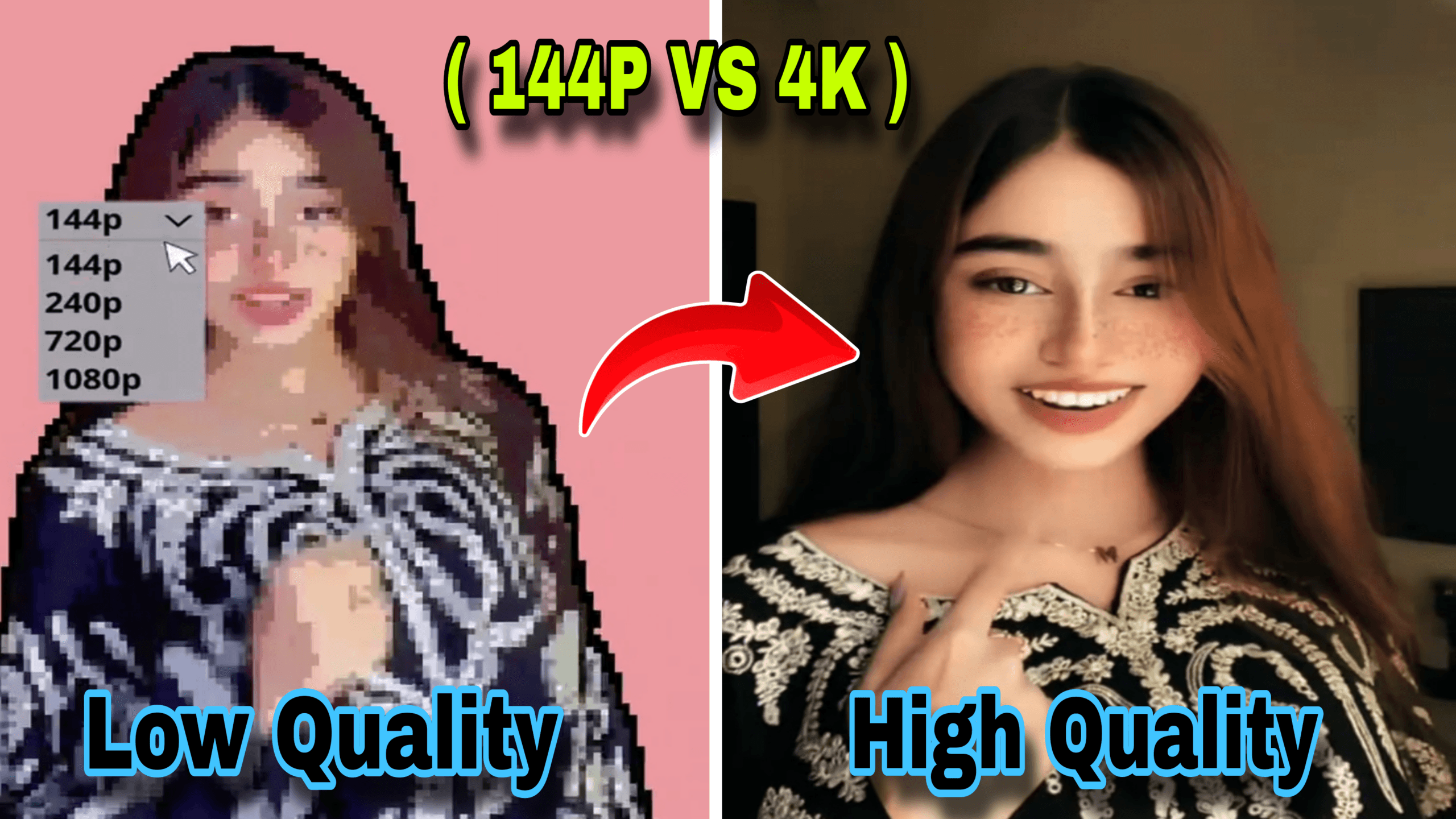
144p is one of the lowest video resolutions available today. It means the Video Quality has 144 vertical lines of pixels. The total resolution is usually 256×144 pixels. At this quality, details are almost invisible and text is unreadable. 144p was mainly used for slow internet connections. It helps save data but sacrifices clarity. You will see this on YouTube when internet is very slow. Faces look block y and backgrounds are unclear. While it is useful for saving bandwidth, it is not good for viewing experience. Most creators avoid 144p unless there is no other option. It is the starting point in our comparison.
144p vs 4K Side By Side Comparison
4K Video Quality is also called Ultra. The resolution is 3840×2160 pixels, which means over 8 million pixels in one frame. This gives extremely sharp and detailed visuals. You can see small textures, facial expressions, and background objects clearly. 4K is the standard for Netflix, YouTube, and modern TVs. It requires more internet and storage, but the result is cinematic. Colors look richer and motion looks smoother. For creators, 4K gives a professional look and future-proofs content. As phones and cameras now shoot in 4K, viewers expect this level of quality. It is the highest common quality most people use today.
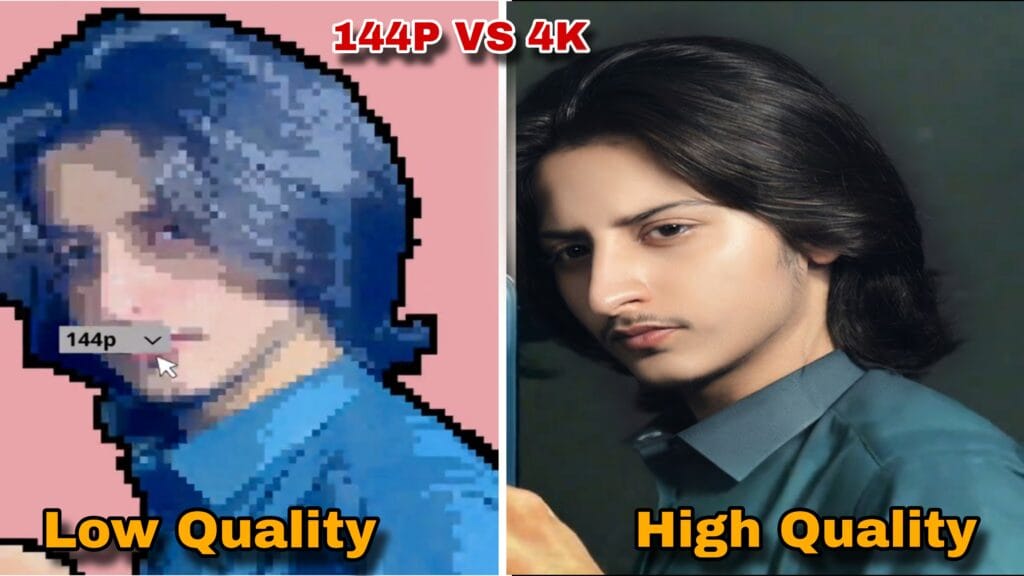
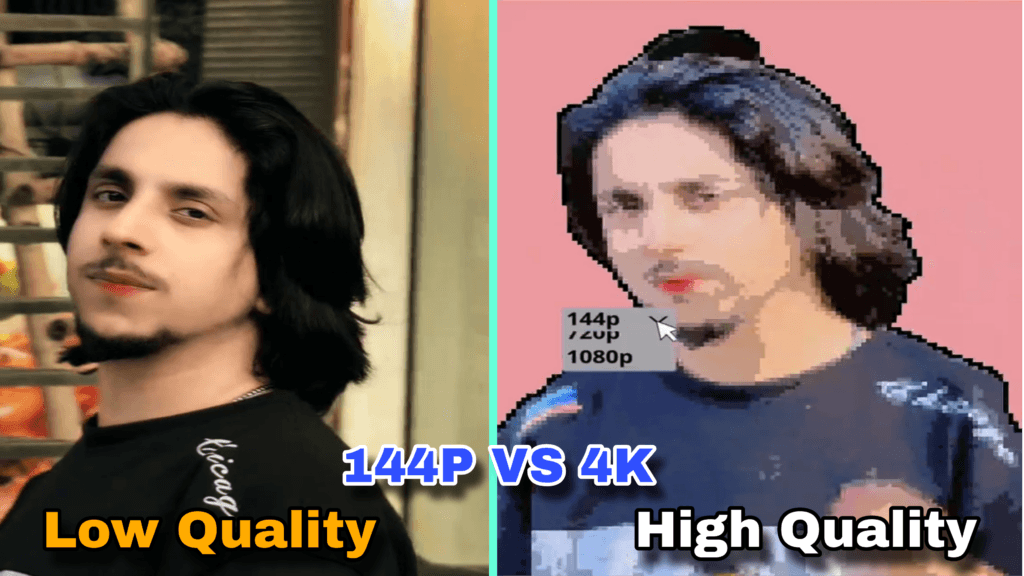
The difference between 144p and 4K is massive. 144p has only 36,864 total pixels while 4K has over 8.2 million pixels. That means 4K has 200 times more detail. In 144p, a face looks like a few colored blocks. In 4K, you can see skin texture and eye color. Text in 144p is impossible to read, but in 4K it is crystal clear. File size also differs a lot. A 1-minute 144p video might be 2MB, while 4K can be 200MB or more. Internet usage, storage, and processing power all increase with resolution. This comparison shows why upgrading from low to high quality improves viewer experience so much.
Video Quality Become Low Quality
Videos become low quality for several reasons. The first is recording with a bad camera or wrong settings. The second is compressing the video too much to save space. The third is poor internet during upload or download. Sometimes old Video Quality were shot in low resolution because cameras back then were limited. Screen recording at low settings also creates 144p or 240p output. Social media apps often compress videos automatically. If you edit and export with low bit-rate, quality drops too. Understanding the cause helps you prevent it next time. But if you already have a blurry video, there are still ways to improve it.
You cannot magically create details that were never recorded. up-scaling 144p to 4K does not add new information. But AI tools can make the Video Quality look much better. They analyze pixels and predict what details should be there. The result is sharper edges, less noise, and smoother motion. It will not be true 4K, but it will look much closer. Think of it like cleaning an old photo. You cannot add what was missing, but you can make it presentable. For old memories, tutorials, or social media clips, this improvement is very useful. The key is using the right AI tool and settings.
Best AI Tools To Upscale Video Quality
There are several free AI tools in 2026 that can upscale videos. Topaz Video Quality AI has a free trial and gives professional results. HitPaw Video Enhancer is easy for beginners and works on PC. Video Enhancer AI supports batch processing. For mobile users, apps like PowerDirector and Video Editor have AI enhance features. Online tools like Cutout.Pro and flier also work without installation. Most free versions add a watermark or limit export length. For full 4K export without watermark, paid plans are needed. But for testing and short clips, free tools are enough to see the improvement from 144p to near quality.
First, download and install your chosen AI upscale on PC or phone. Import your 144p video into the software. Choose the output resolution as 1080p or 4K depending on the tool. Select the AI model made for low quality or old footage. Turn on noise reduction and sharpening if available. Set the bit-rate to high for better results. Preview a few seconds to check quality. Then export the Video Quality. It may take time depending on video length and your PC. After export, compare before and after. You will notice less blur and cleaner edges. Save the final file and it is ready to upload.
Tips To Get Better Results
To get the best results, start with the best source file you have. Avoid videos that are already heavily compressed. Upscale to 1080p first, then to 4K if needed. Use noise reduction before sharpening. Do not over-sharpen or the video will look artificial. If the video has flicker, use frame stabilization. For audio, keep the original sound or replace it separately. Export in MP4 with H.264 codex for compatibility. Test on different screens like phone and TV. Remember that lighting and contrast also affect perceived quality. Small edits like color correction after up-scaling make a big difference in final output.
Use 4K when quality matters most. Examples include YouTube videos, client work, product demos, and content you want to last for years. Use 1080p for Instagram, TikTok, and Facebook where file size matters. Use 720p for presentations or quick shares. Avoid 144p unless internet is extremely slow. For archiving family videos, 4K is best even if source was low. For live streams, 1080p is usually enough. Always match resolution to platform and audience. Higher resolution means bigger files and more upload time. So balance between quality and practicality. But for final videos, high quality always wins.
Future Of Video Quality In 2026
In 2026, 4K is common but 8K is growing. AI is making up-scaling faster and better. Phones now record 4K by default. Streaming platforms use AI to auto-enhance videos. Internet speeds are improving, so high quality is easier to access. We also see AI that can colorize and restore old low quality videos. The line between real 4K and upscale 4K is getting smaller. For creators, this means you can revive old content and make it new again. The focus is shifting from just resolution to overall experience including and frame rate. Learning these tools now will keep you ahead.
Understanding video quality from 144p to 4K helps you make better content decisions. 144p is good for saving data but bad for viewing. 4K gives the best detail but needs more resources. With AI tools, you can improve old low quality videos and make them watchable again. The process is not perfect, but results are impressive. Use the right tool, follow the steps, and avoid common mistakes. Whether you are a creator, student, or casual user, better video quality makes a big difference. Start with free tools, test them, and choose what works for you. Video Quality always wins in the long run.