Turn your normal clips into cinematic Video App with PixelFlow. Create cinematic effects Easy mobile video editing tutorial with before and after results.
Introduction to Mobile Video App Editing
Mobile Video App editing has changed the way we create content. In 2026, most creators do not use big computers anymore. They shoot and edit everything on their phone. Apps like PixelFlow make it possible to turn simple clips into professional looking videos. You do not need expensive gear or years of experience. With the right tools and steps, anyone can make cinematic videos that look like they were made in a studio. This guide will show you how to use PixelFlow Video App to transform normal footage into eye catching edits. We will cover basics, effects, color grading, and before after results so you can follow along easily.
A cinematic Video App is not just about filters. It is about lighting, motion, color, and storytelling. Cinematic videos usually have slow motion, shallow depth of field, smooth transitions, and rich colors. The goal is to make the viewer feel something. With PixelFlow, you can achieve this look directly on your phone. The app gives you tools for speed ramping, motion blur, lets, and sound design. You can take a normal daytime clip and add mood, contrast, and drama. In the next sections we will break down each part. Once you understand what makes video feel like a movie, editing becomes much easier and more fun.
Getting Started with PixelFlow Video App
To begin with, download PixelFlow Video App from the Play Store or App Store. The good news is the interface is clean and beginner friendly. After that, open the app and tap “New Project” to import your clips. At the same time, keep your clips steady while shooting for better results. In addition, use 24fps or 30fps for a film look. Moreover, PixelFlow supports 4K export so your quality stays sharp. Before you start editing, organize your clips in order because this saves time later. As a result, the timeline lets you easily cut, trim, and arrange scenes. Besides this, you can also add music and voice-over. For this reason, spend a few minutes exploring the tools. Finally, once you are comfortable, we can start adding cinematic effects that will completely change how your video looks and feels.
The first step in any edit is cutting. Remove extra parts from your clips. Keep only the best moments. In PixelFlow, use the split tool to cut and drag to trim. Timing is everything in cinematic Video App editing. Try to cut on action or on the beat of your music. This makes the edit feel smooth. Avoid long static shots unless they add emotion. Watch movies and notice how fast cuts happen. You can copy that rhythm. After trimming, your video should already feel tighter. This is the foundation. Good cuts make every effect that comes next look 10 times better. Take your time here and preview often.
Adding Slow Motion and Speed Ramping
Slow motion adds emotion and drama. PixelFlow lets you slow down any clip with one tap. For cinematic results, use speed ramping. This means the Video App starts normal, slows down in the middle, then goes back to normal. It looks amazing on action shots, walking scenes, or nature clips. Tap the clip, select speed, and add key-frames. Drag to control where it slows. Keep it subtle. Too much slow motion can feel boring. Combine it with music to increase impact. This technique is used in almost every movie trailer. With PixelFlow you can do it on mobile in seconds. Try it on your before clip and see the difference instantly.
Color is what makes Video App feel cinematic. Video App PixelFlow has built in lets and color presets. lets are color filters used by filmmakers. Choose a warm orange and teal let for a movie look. Or try a cool blue tone for dramatic scenes. Adjust exposure, contrast, and saturation after applying the let. Do not overdo it. The goal is natural but stylized. You can also use curves for fine control. Color grading is where your normal clip turns into a cinematic clip. Always compare before and after. Your eyes will notice the upgrade immediately. Save your favorite settings as a preset for future projects.
Video App Blur and Transitions
Jump cuts can feel harsh. PixelFlow offers smooth transitions like cross dissolve, whip pan, and motion blur. Use motion blur when adding speed ramps. It makes movement look natural. For scene changes, try a quick fade or light leak transition. Keep transitions short, 0.3 to 0.5 seconds. Too long looks amateur. You can also add camera shake for action scenes. The key is to match the energy of your video. Transitions should support the story, not distract. After adding them, play the full Video App. If it flows well, you are on the right track. Small details like this separate pro edits from basic ones.
Video App without good sound feels empty. Add background music that matches the mood. PixelFlow has a music library and you can also import your own tracks. Lower music volume under dialogue. Add sound effects like whoosh, impact, and ambiance. A simple whoosh during a transition adds polish. For cinematic videos, use soft background pads and subtle drums. Sync cuts to the beat. Good audio makes people watch longer. Always use headphones to check levels. Export with high quality audio. Remember, people forgive bad video but not bad audio. This step will take your edit from good to great.
Text, Titles, and Overlays
First of all, titles help tell your story in a clear way. Next, in PixelFlow Video App, choose simple fonts and avoid flashy text. In addition, place titles in the lower third for a professional look. Also, use fade in and fade out animations to make them smooth. Furthermore, you can add glow or shadow for better readability. However, do not put too much text on screen because one short line is enough. On the other hand, overlays like film grain or light leaks can add texture, but use them lightly. The main point is, the goal is to support the video, not cover it. In fact, cinematic videos often have minimal text. Therefore, let the visuals do the talking. Finally, preview on your phone and on a bigger screen to check if text is clear.
Get App Link
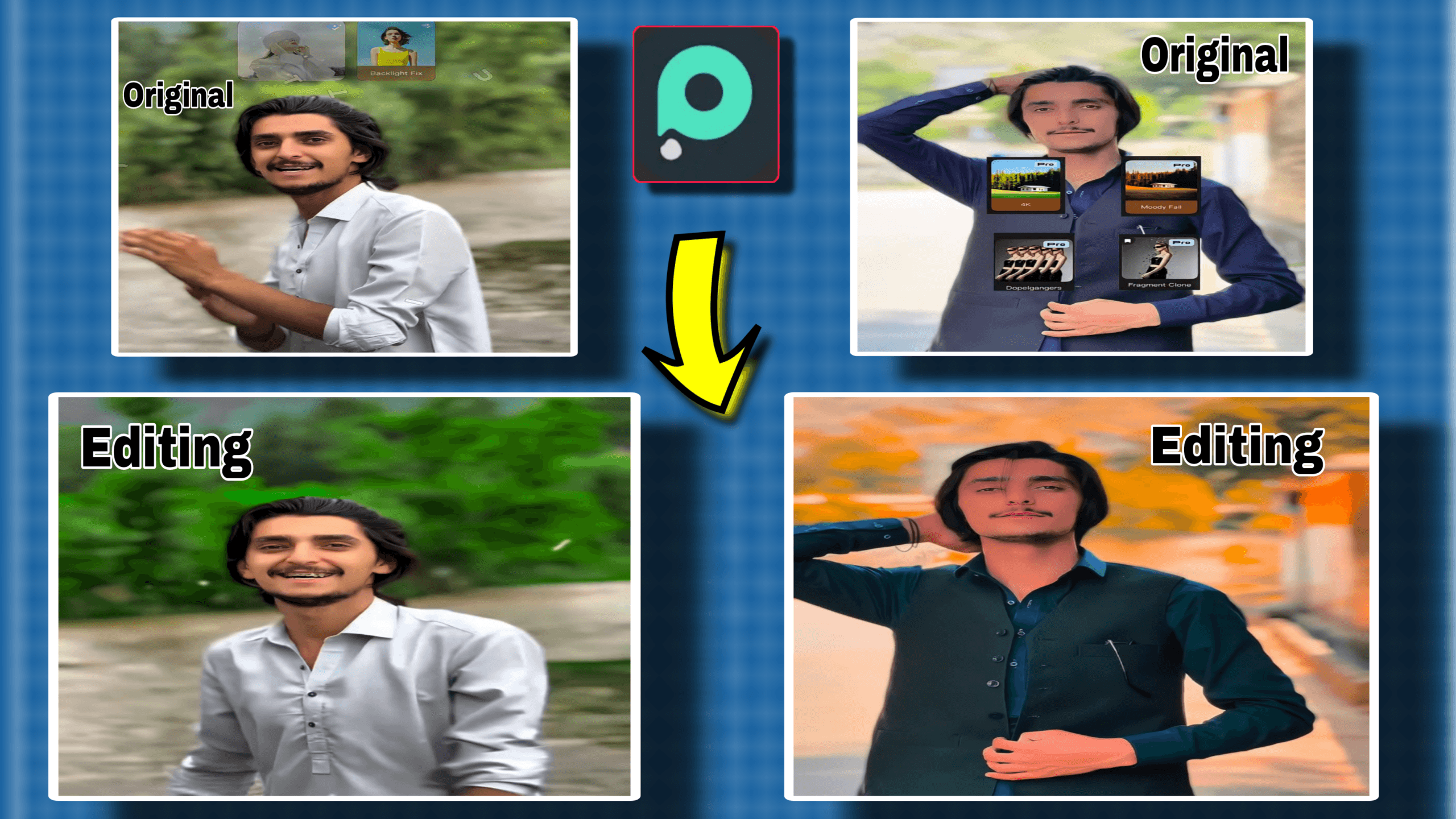
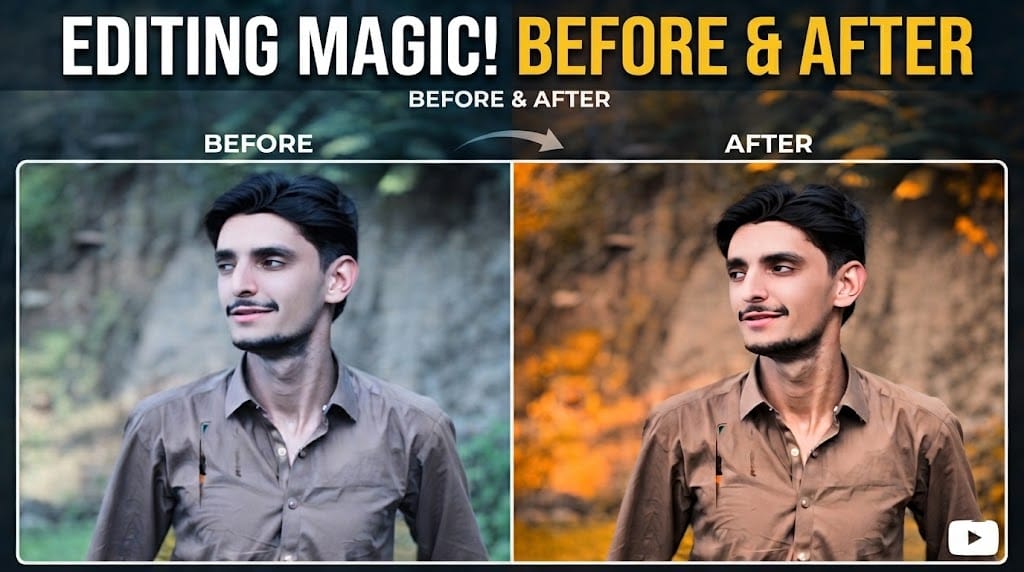
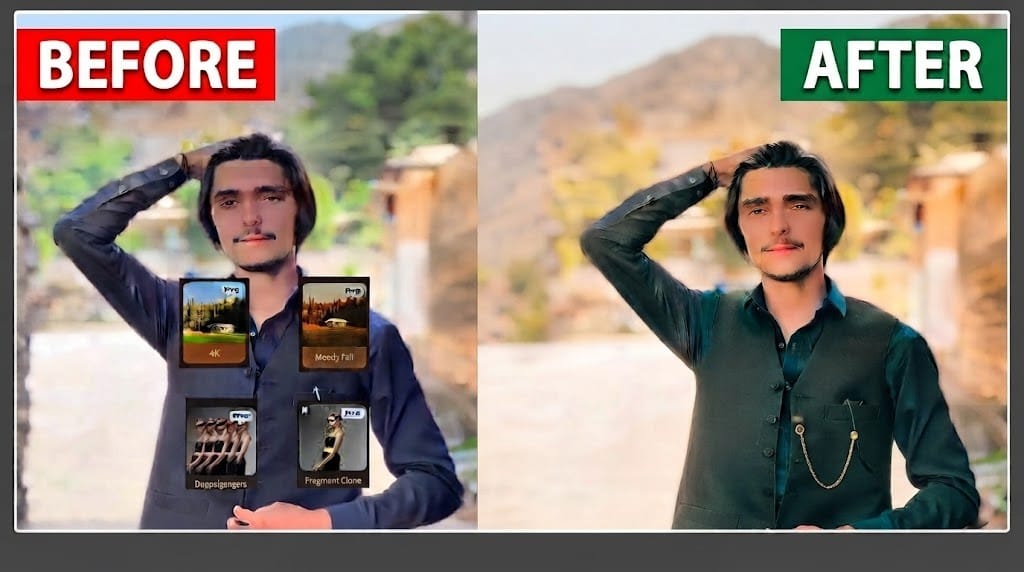
Here is where the magic happens. Take a normal clip. It may be flat, bright, and boring. After editing in PixelFlow, it becomes colorful, smooth, and dramatic. The before clip looks like phone footage. The after clip looks like a movie scene. This is because of color grading, speed ramps, sound, and transitions working together. Try it yourself. Record a simple walk, apply a let, add slow motion, and put music. Compare both versions. The difference will motivate you to keep learning. PixelFlow makes this process fast and easy even for beginners.
Export Settings for Best Quality Video App
When you finish editing, export matters. In PixelFlow, choose 4K resolution and 20-30 bit-rate. Keep frame rate the same as your footage. Use H.264 code for compatibility. Turn on “High Quality Render”. This keeps details sharp. Name your file clearly. Save to your gallery or directly upload to YouTube, Instagram, or TikTok. Test the video on different screens. If it looks good on phone and laptop, your export is perfect. Good export settings protect all the work you did in editing.
First of all, avoid overusing effects because too many filters can make your video look fake. In addition, do not add random transitions without any reason. Moreover, keep the color consistent across all your clips for a professional look. At the same time, avoid shaky footage by using a tripod or by using the stabilize option in PixelFlow. Besides that, do not ignore audio quality as it plays a big role. Most importantly, do not rush the process because cinematic editing needs patience. For example, watch your Video App 3 times before posting to catch small errors. After that, ask a friend for feedback and then fix small issues. In conclusion, these mistakes are easy to avoid once you know them, and as a result learning from them will make your next video much better.