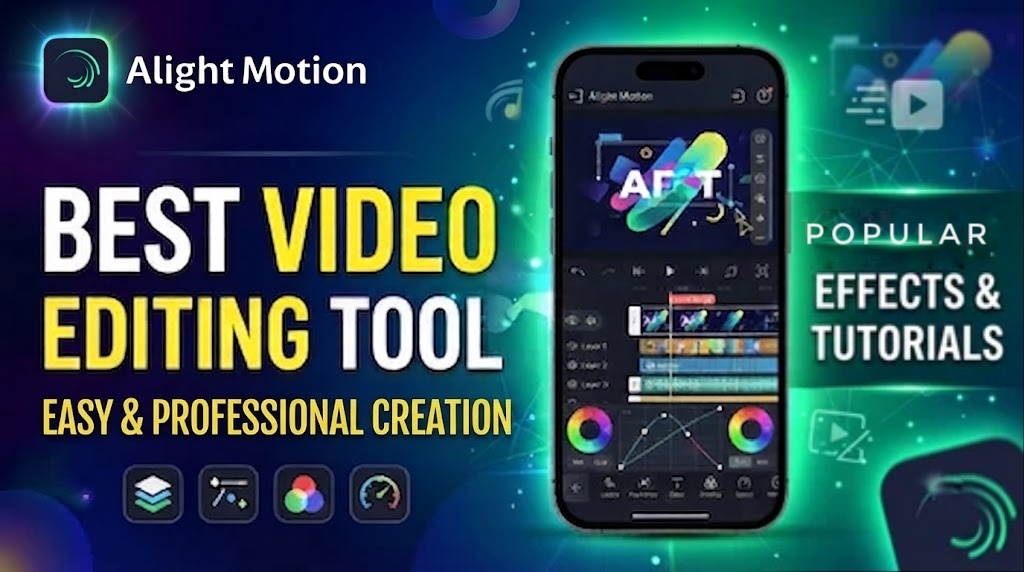
Discover all Alight Motion effects and AI tools. Complete guide with tips for creating motion graphics professional videos on mobile.
Alight Motion is the Best Editing
Alight Motion in 2026 has become the most powerful video editing app for mobile users around the world. What used to require a desktop and heavy software can now be done directly from your phone with professional results. The biggest reason creators love this app is its layer-based editing system. Just like on a computer, you can stack videos, images, text, audio, and shapes on separate layers and control each one individually. This gives you complete creative freedom.
Whether you are making YouTube shorts, Instagram reels, TikTok videos, or brand advertisements, Alight Motion handles every type of project smoothly. The 2026 update made it even better by adding new AI tools that speed up editing by a huge margin. Tasks that once took 30 minutes can now be finished in under a minute. With features like background removal, auto captions, and beat sync, this app has become the go-to choice for both beginners and experienced editors who want to work fast without compromising quality.
Complete Guide to All Effects Available
When it comes to effects, Alight Motion offers one of the largest libraries available on mobile. The app covers everything from basic color correction to advanced visual effects. You can adjust brightness, contrast, saturation, and apply cinematic LUTs to give your video a consistent and professional look. For creators who want more style, there are blur effects, glow, shadows, distortion, wave, ripple, and light leak overlays that instantly make any clip look premium.
What makes these effects stand out is that every single one can be animated using keyframes. This means you can start a scene with heavy blur and slowly bring it into focus, or make a text glow pulse with the music. The developers also update the effect library every month, so you always get access to trending styles that are popular on social media. Because of this flexibility and constant updates, many creators call Alight Motion the best all-in-one editing app for mobile.

Exploring the New AI Tools
The most exciting part of the 2026 version is the new set of AI tools that were added to save time and effort. The AI Background Remover is a game changer because it lets you cut out people or objects from any video without needing a green screen. It handles edges, hair, and even moving objects very cleanly. Another tool that creators use daily is AI Auto Captions. If you record a voiceover, the app listens and automatically generates subtitles in multiple languages. You can also change the font, color, and animation style of the captions to match your brand.
Then there is AI Beat Sync, which analyzes any music track and places markers exactly on the beat. This makes it super easy to create fast-paced edits and music videos that look perfectly timed. The app also includes AI Style Transfer, which can turn your normal video into an anime, cartoon, or painting style with just one tap. Lastly, the AI Upscaler improves low-resolution clips and converts them to 2K or 4K while reducing noise. All of these tools are designed to remove technical barriers so creators can focus on storytelling instead of spending hours on manual work.
Create Motion Graphics
Creating motion graphics on mobile used to sound impossible, but Alight Motion makes it simple. Motion graphics are animated elements like logos, text, and shapes that add energy to your video. To start, you set up your project with the right resolution. For vertical videos use 1080×1920 and for YouTube use 1920×1080. After that, you add layers for your background, text, and design shapes. Keeping each element on its own layer makes editing much easier later.
The real magic happens with keyframe animation. You can animate position, scale, rotation, and opacity over time to bring everything to life. The graph editor helps you make those movements smooth and natural instead of robotic. Once the animation is done, you can add effects like motion blur or glow to give it depth. When you export, choose 1080p resolution and a bitrate of at least 20Mbps so the final video stays sharp. With this workflow, you can create professional logo reveals, text animations, and cinematic intros in less than 10 minutes, all from your phone.

Professional Video Editing
To get truly professional results, you need to follow a few important practices while editing. First, always start with high-quality footage because no amount of editing can fix a blurry or pixelated clip. Second, keep your project organized by naming layers and grouping similar elements together. This saves a lot of time when you need to make changes. Third, use consistent color grading across all clips in one video. Pick one LUT or color preset and apply it everywhere so the video feels unified.
Fourth, don’t overuse effects. Two or three well-placed effects look much better than ten effects thrown together. Fifth, pay attention to audio. The music should be low when someone is speaking, and you should add sound effects to make transitions feel smoother. A great trick is to always watch your final export on a phone before posting, because that’s how most people will see it. These small details are what separate amateur videos from professional ones.
Common Mistakes You Should Avoid
AvoidMany beginners make the same mistakes and wonder why their videos don’t perform well. The most common mistake is exporting in low resolution. In 2026, 720p looks outdated. Always export in 1080p or 4K to keep your video sharp on all devices. Another mistake is making animations too fast. If text appears and disappears in 0.2 seconds, viewers won’t have time to read it.
Keep animations between 0.5 and 1 second so they feel natural. A third mistake is ignoring audio levels. If your background music is too loud, people won’t hear the voiceover. Use keyframes to lower the music during speech. The last big mistake is copying viral templates exactly as they are. If you use a template, change at least the colors, fonts, and timing so your video feels original and not like a copy. Originality matters a lot for growth and for keeping your content safe for monetization.
Who Should Use Alight Motion
Alight Motion is made for every type of creator who wants to edit on the go. YouTubers use it for shorts and tutorials. Business owners use it to make product ads and promotional videos without hiring an editor. Students use it for school projects and presentations. Freelancers use it to deliver client work directly from their phone.
The app works offline, exports without a watermark, and gets regular updates with new features. That means you can edit anywhere, anytime, without being tied to a computer. For people who don’t have access to expensive software, this app provides almost 80 percent of the same features in a much simpler package. It’s proof that you don’t need a big setup to create big results anymore.
Final Thoughts on Alight Motion
In the end, Alight Motion is more than just a video editor. It is a complete creative studio that fits in your pocket. With hundreds of effects, powerful AI tools, and a smooth workflow, it gives you everything you need to compete with top creators. But remember, tools are only half the job. Your ideas, storytelling, and consistency matter more.
Practice every day, try new styles, and learn from other creators in your niche. Start with simple projects and slowly challenge yourself with more complex motion graphics. If you follow the tips in this guide and stay consistent, your video quality will improve quickly and your audience will notice the difference.


